Amazon Fire TV Compatibility
What to know about setting up DisplayHUB on Fire TV Stick and Fire TV Cube devices
Offical Amazon App Store: https://www.amazon.com/gp/product/B0GPNY41CG
What to know about setting up DisplayHUB on Fire TV Stick and Fire TV Cube devices
Offical Amazon App Store: https://www.amazon.com/gp/product/B0GPNY41CG
Amazon Fire TV devices run a customized version of Android — called Fire OS — that differs from standard Android TV in a few important ways. Most streaming apps work identically on both platforms, but apps that need to display content on top of other apps (like DisplayHUB’s overlay) require an extra permission that Fire OS does not expose through its standard settings menus the way Android TV does.
This guide explains what that permission is, why it’s needed, why Fire OS makes it harder to grant, and how to enable it so DisplayHUB works correctly on your Fire TV device.
DisplayHUB uses Android’s “Display over other apps” permission (technically called SYSTEM_ALERT_WINDOW) to render its playback interface on top of the Fire TV home screen. This is the same mechanism used by picture-in-picture players, floating chat heads, and similar apps on Android devices.
On standard Android TV and Google TV devices, this permission can be granted directly from the app’s settings page. On Fire OS, Amazon restricts this settings path — the menu option either doesn’t appear or opens the wrong screen. This is a deliberate limitation of Fire OS, not a bug in DisplayHUB.
The reliable way to grant this permission on a Fire TV device is through ADB (Android Debug Bridge) — a standard Android developer tool that lets you send commands to the device over your local network. Once granted, the permission persists permanently and you won’t need to do this again unless you factory reset the device.
Standard Android TV
Settings → Apps → Special App Access → Display over other apps ✓
Fire OS
Same menu path not available → ADB required ✓
ADB (Android Debug Bridge) is an official developer tool built into every Android device, including Fire TV. It allows a computer or server on your local network to send commands directly to the device — the same tool used by app developers to test and debug their apps.
Enabling ADB does not root your device, does not void your warranty, and does not expose your device to the internet. ADB over network only works on your local Wi-Fi network, and Fire TV requires you to physically approve the connection the first time a new device connects. You can disable ADB again after setup if you prefer.
DisplayHUB’s controller — the Raspberry Pi on your network — uses ADB to automatically detect Fire TV devices and grant the overlay permission on your behalf. You do not need to install any software on your computer or type any commands manually. All you need to do is enable ADB on the Fire TV once, and approve the connection prompt when it appears on screen.
Note: ADB is used by millions of Android developers worldwide and is a standard part of the Android platform. It is not a hack or a workaround — it is the official, supported method for granting permissions that Fire OS restricts from its settings UI.
From the Fire TV home screen, go to Settings → My Fire TV → About. Find the line that says Fire TV Stick (or your device model name) and click it seven times in a row. You’ll see a message that says “You are now a developer.” This unlocks the Developer Options menu.
Go back to Settings → My Fire TV → Developer Options. Turn on ADB Debugging. You can also turn on Apps from Unknown Sources while you’re here — this isn’t required for ADB but may be needed if you install DisplayHUB via sideloading rather than the Appstore.
Once ADB is enabled, DisplayHUB’s controller will automatically connect the next time it sees your Fire TV on the network. A prompt will appear on your TV screen asking “Allow ADB debugging?” — select Allow using your Fire TV remote. Check the box for “Always allow from this device” so you don’t have to approve it again.
You can also trigger the auth from the on-screen Fire TV remote.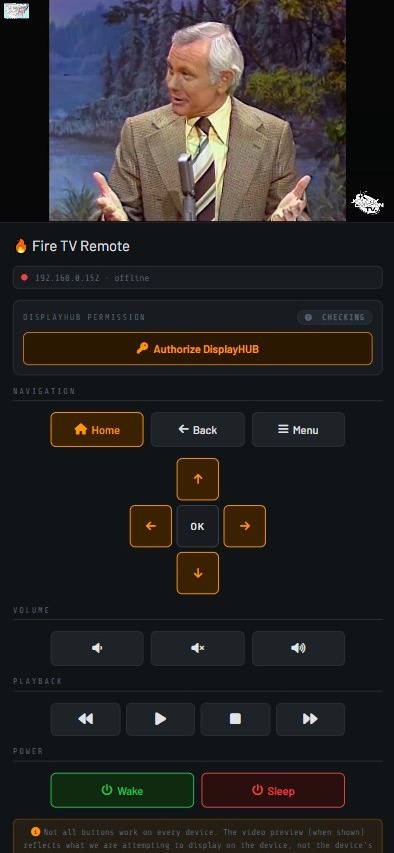
Once you approve the ADB connection, DisplayHUB’s controller automatically runs a single command that grants the overlay permission to the DisplayHUB app. You don’t need to do anything else. The controller verifies the permission is in place every time it sees the device on the network, so if anything ever changes — such as after a Fire OS update — it will re-grant the permission automatically.
Your Fire TV will then appear in the DisplayHUB controller dashboard as a Fire TV device, ready to receive video streams like any other decoder on your network.
If the “Allow ADB debugging?” prompt does not appear on screen, check that your Fire TV and the DisplayHUB controller (Raspberry Pi) are on the same local network, and that ADB Debugging is turned on in Developer Options. The controller scans for devices periodically, so it may take a minute or two for the connection attempt to appear.
The full process, summarized:
1. Settings → My Fire TV → About
Click device name 7 times
2. Developer Options → ADB Debugging: ON
3. Approve “Allow ADB debugging?” on screen
4. DisplayHUB grants permission automatically
✓ Done — device appears in dashboard
The recommended Fire TV devices for DisplayHUB. The MediaTek MT8696 processor handles low-latency streaming reliably, and the 2GB of RAM provides adequate headroom alongside Fire OS. The 4K Max adds Wi-Fi 6 support, which reduces wireless jitter in congested network environments.
The most capable Fire TV hardware. The Amlogic S905 (2nd gen) and MediaTek MT8696T (3rd gen) processors with 2GB RAM handle low-latency decode comfortably. The built-in Ethernet port on the 3rd gen Cube is a significant advantage — wired connections eliminate Wi-Fi jitter entirely.
The base Fire TV Stick uses older processor cores and 1GB of RAM, which can lead to intermittent audio dropouts in low-latency mode — particularly after extended use when the device thermals rise. HLS mode is recommended on these devices for reliable playback.
Amazon periodically releases Fire OS updates that may reset certain developer settings. If DisplayHUB stops working on your Fire TV after an automatic update, the first thing to check is whether ADB Debugging is still enabled in Developer Options. If it has been turned off, simply re-enable it — the DisplayHUB controller will reconnect and re-verify the overlay permission automatically within a few minutes of the device coming back online.
DisplayHUB’s controller checks the overlay permission status every time it sees the device on the network, so any permission loss after an update will be corrected without manual intervention as long as ADB Debugging remains enabled.
Fire TV devices are fully supported by DisplayHUB, but they require one extra setup step that standard Android TV devices don’t: enabling ADB Debugging so the controller can grant the overlay permission that Fire OS hides from its settings UI. The process takes about two minutes, requires no technical knowledge, and only needs to be done once per device. After that, DisplayHUB manages everything automatically.
Have questions about your specific Fire TV model or running into trouble during setup? Reach out to us — we’re happy to walk you through it.