
Adding HDHomeRun OTA Tuners

How to enable antenna broadcast over-the-air TV in DisplayHUB

Free OTA content and a solid backup to DirecTV and internet-based TV.

HDHomeRun tuners let you pull in free over-the-air (OTA) channels from an antenna and stream them over your network. When you pair an HDHomeRun with DisplayHUB, you can treat antenna channels just like any other source: route them to any display, mix them with DirecTV inputs, and have a reliable backup when satellite or internet-based content has issues.

Once the tuner is on the same network as your DisplayHUB encoder, the encoder can claim a specific tuner, lock it to a channel, and publish that antenna feed as a normal DisplayHUB source. No extra HDMI cables, no additional set-top boxes at every TV.

✓ Why use HDHomeRun with DisplayHUB

  • Bring in local OTA channels (ABC, CBS, NBC, FOX, etc.) for free.
  • Use antenna TV as a backup when DirecTV or streaming goes down.
  • One HDHomeRun can feed multiple DisplayHUB encoders and apps.
  • No HDMI splitters required – everything travels over Ethernet.
  • DisplayHUB can scan for tuners and assign a specific tuner per encoder.

Step 1: Add an HDHomeRun tuner to your network

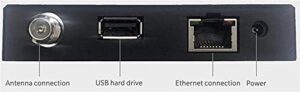
Connecting an HDHomeRun is simple: give it an antenna feed and a wired Ethernet connection to the same network as your DisplayHUB encoders. Once it powers up, it will advertise itself on the LAN and DisplayHUB can discover it automatically.

What You’re Looking For

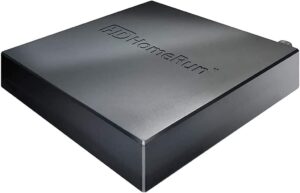
An HDHomeRun tuner box connected to:

  • A coax cable from your TV antenna (roof, attic, or indoor).
  • A wired Ethernet connection into your main switch or router.
  • A location close to where the antenna feed enters the building, or anywhere you can run both coax and Ethernet.

Once it is powered on and connected to Ethernet, the tuner will show up on the network and can be scanned from inside DisplayHUB.

Step 2: Use the HDHomeRun scan button in DisplayHUB

Installation Steps

  1. Make sure your HDHomeRun and DisplayHUB encoder are on the same network (same LAN/subnet).
  2. On the encoder web interface, open the Settings panel.
  3. Set Connected device association to HDHomeRun (antenna).
  4. Click Scan for devices next to the HDHomeRun controls. DisplayHUB will search the network and list any tuners it finds.
  5. Select the HDHomeRun device and the specific tuner number you want this encoder to control.
  6. Click Save Settings so this encoder remembers which tuner and channel it should use.
  7. From the HDHomeRun web/app, scan for channels if you have not done so yet, then set the encoder to the desired OTA channel.

After this, the antenna feed becomes just another DisplayHUB source that you can route to any display alongside your DirecTV and IP-based inputs.
What You’ll Need

SiliconDust HDHomeRun Flex Quatro

~$200

Amazon

SiliconDust HDHomeRun Flex Duo

2-tuner ATSC 1.0 model – great for smaller venues or backup OTA feeds.

~$110
Amazon

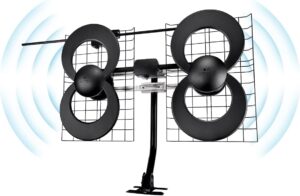
Any quality UHF/VHF OTA antenna plus a wired Ethernet run to your switch or router.

~$40–200

Amazon

Total typical setup (tuner + antenna): ~$150–280 depending on model and antenna.

Tips & Troubleshooting

💡 Tips

  • The tuners add processing overhead and will likely not work very well with overlays enabled. Stuttering and other isues may occur.
  • Whenever possible, connect HDHomeRun tuners via wired Ethernet instead of Wi-Fi.
  • Place your antenna as high and as clear as you can – near a window, attic, or roof mount.
  • Run a channel scan using the HDHomeRun app or web UI before assigning the tuner in DisplayHUB.
  • Use one tuner per DisplayHUB encoder for the most predictable behavior.
  • Label your encoders in DisplayHUB with the OTA channels they’re feeding (for example, “OTA – Local News”).

🔧 Troubleshooting

  • No tuners found in DisplayHUB: Confirm the HDHomeRun and encoder are on the same network and VLAN; verify you can reach my.hdhomerun.com from a browser on that network.
  • Channels missing or blank: Re-run the HDHomeRun channel scan, then test playback directly in the HDHomeRun app to confirm signal quality.
  • Choppy video on displays: Check signal strength/quality in the HDHomeRun UI and avoid using long or low-quality coax runs or cheap splitters.
  • Multiple tuners in use: Make sure each DisplayHUB encoder is assigned to a different tuner number on the same HDHomeRun, or add an additional HDHomeRun for more simultaneous feeds.
  • Still stuck? Power-cycle the HDHomeRun, your switch/router, and the encoder, then re-run the DisplayHUB scan.