LG webOS Device Compatibility

What to know about low-latency streaming performance and control on LG webOS TVs

Using DisplayHUB with LG webOS TVs

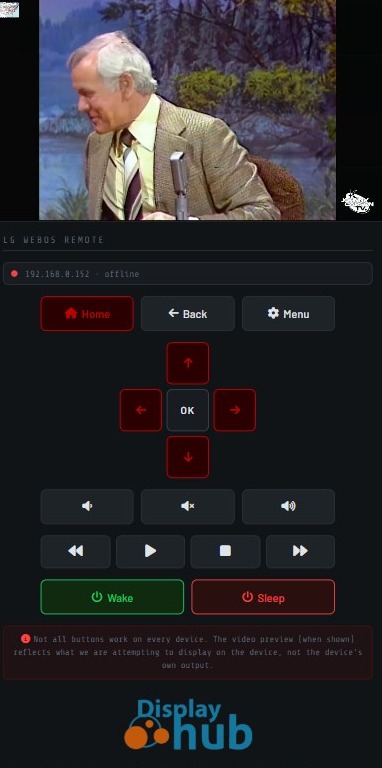
DisplayHUB works directly with LG smart TVs running webOS, allowing you to stream live video and control playback without needing an external streaming device. This makes deployment simple — but performance and functionality depend on both the TV hardware and system settings.

Unlike external streaming boxes, the media player and system resources are built into the television. That means decoding performance, audio processing, and network stability all rely on the TV’s internal processor and software version.

This guide explains what to expect, how to configure your TV correctly, and how to get the most reliable performance.

Important: Enable Mobile / App Control on the TV

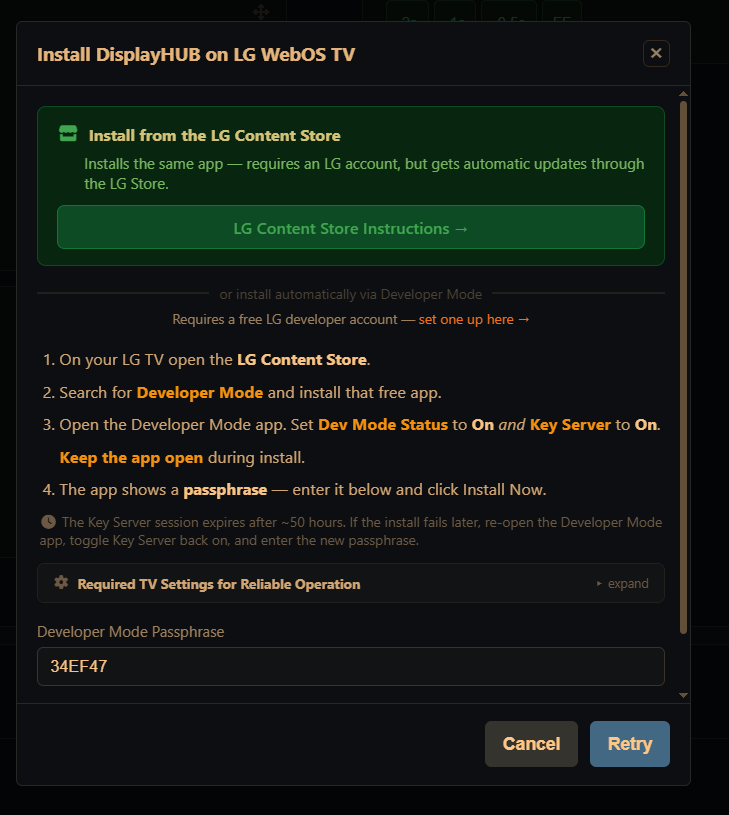
For DisplayHUB to communicate with your LG TV, remote control access must be enabled in the webOS settings. Without this setting enabled, the controller cannot send commands or manage playback.

You must enable mobile or app control before connecting the TV.

On most LG webOS TVs:

  • Open Settings
  • Go to General
  • Open Devices or External Devices
  • Enable LG Connect Apps or Mobile TV On

The exact wording may vary by webOS version, but the setting allows external devices (like DisplayHUB) to control the TV over the network.

When first connecting, the TV may display a permission prompt. Accept it to allow control.

Required Setting
LG Connect Apps / Mobile TV On

Enables network control from DisplayHUB

Why TV Hardware Matters for Low-Latency Streaming

Standard streaming apps like Netflix or YouTube use large playback buffers — often 30 seconds or more. This hides processing delays and network variation.

Low-latency streaming works differently. DisplayHUB keeps the buffer extremely small to minimize delay. That means your TV must decode video and process audio in near real-time.

Newer LG TVs with faster processors handle this easily. Older or entry-level models may show occasional audio dropouts, buffering, or delayed playback — especially when running for long periods.

Because televisions are not designed specifically for ultra-low-latency streaming, performance can vary significantly by model year.

Standard Streaming
Large buffer → hides performance limits

Low-Latency Streaming
Minimal buffer → real-time processing required

Common Symptoms on Older or Slower TVs

Intermittent audio dropouts: Brief silence or crackling while video appears normal. Audio processing is often the first to struggle when CPU resources are limited.

Playback stalls when switching sources: Some TVs take longer to establish new low-latency sessions.

Audio/video sync drift: Audio slowly becomes out of sync during extended playback.

Performance changes after long run time: TVs may reduce processor speed to manage heat, especially in warm environments.

If you experience these symptoms, switch to HLS playback mode in DisplayHUB. HLS uses larger buffers and is more tolerant of hardware limitations, but latency increases (typically 6–12 seconds).
Network Connection Recommendations

Low-latency streaming is sensitive to network stability. WiFi interference or signal fluctuation can cause playback interruptions even on powerful TVs.

Best practice: Use a wired Ethernet connection whenever possible.

Most LG TVs include built-in Ethernet ports. In commercial environments or dense WiFi areas, wired networking significantly improves reliability.

Modern home WiFi networks typically perform well, but Ethernet removes a major source of variability.

Summary

DisplayHUB works well with LG webOS TVs, but proper setup is essential.

  • Enable LG Connect Apps / Mobile TV On to allow control
  • Newer TV models provide better low-latency performance
  • Ethernet is recommended for stability
  • HLS mode is available if real-time playback is unstable

With correct configuration, webOS TVs provide a simple and clean way to deploy DisplayHUB without external streaming hardware.

Need help configuring your specific LG model? Contact us — we’re happy to help.

[/col]