Connecting to DirecTV Receivers

How to enable Display Hub control of your DirecTV boxes

The Solution: DECA Adapter

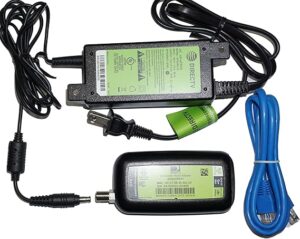
DirecTV systems have a built-in network running over the coaxial cables connecting all your receivers. By installing a single DECA (DirecTV Ethernet to Coax Adapter) at the point where your DirecTV wiring originates, you gain network access to every receiver in the system.

DECA adapters are inexpensive (~$20), require no configuration, and work with all DirecTV receivers. Once connected to your network, Display Hub’s Scan for DirecTV button will automatically discover all receivers—just select which one to control for each encoder.

✓ Works With All DirecTV Boxes

  • Genie DVRs (HR44, HR54, HS17)
  • Genie Minis (C41, C51, C61)
  • HD DVRs (HR20-HR24, HR34)
  • HD Receivers (H21-H25)
  • 4K equipment

Step 1: Find Your DirecTV Distribution Point

The distribution point is where the coax from the satellite dish splits out to all your receivers. This is where you’ll install the DECA.

Where to Look

  • Near the satellite dish entry point
  • Utility closet or basement
  • Garage or attic
  • Near the electrical panel
  • Structured wiring enclosure

What You’re Looking For

A splitter where one coax comes in and multiple cables go out. May also include a SWM (powered box) or power inserter.

From Dish
    │
    ▼
┌────────┐
│Splitter│ ◄── Install DECA here
└─┬─┬─┬──┘
  │ │ │
  ▼ ▼ ▼
 To receivers

Step 2: Install the DECA Adapter

Installation Steps

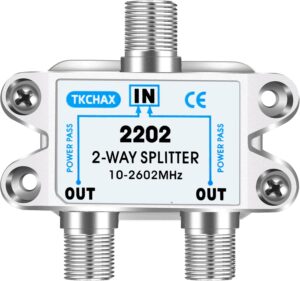
  1. Add a 2-way splitter before the main splitter (or use an unused port if available)
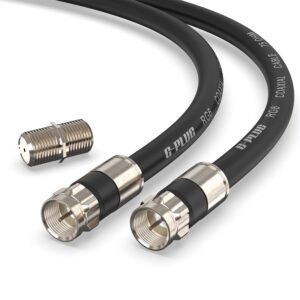
  2. Connect the DECA to the new splitter port with a short coax cable
  3. Power the DECA with the included AC adapter
  4. Run Ethernet from the DECA to your network (router or switch)

Done. The DECA is now bridged to every DirecTV receiver.

From Satellite/SWM
        │
        ▼
┌───────────────┐
│  New 2-Way    │
│   Splitter    │
└───┬───────┬───┘
    │       │
    │       ▼
    │   ┌────────┐
    │   │  DECA  │───► To Network
    │   └────────┘
    ▼
┌───────────────┐
│ Distribution  │
│   Splitter    │
└─┬──┬──┬──┬──┬─┘
  ▼  ▼  ▼  ▼  ▼
 To all receivers

What You’ll Need

DirecTV DECA Adapter

3rd Gen with AC power. You only need one.

~$20

Amazon


2-Way Coax Splitter

To add the DECA to your distribution point.

~$8

Amazon

Connect splitter to DECA.


~$8

Amazon

Total: ~$30-35

Step 3: Enable Network Control on Each Receiver

This step is required. Even after connecting the DECA, DirecTV receivers will not respond to DisplayHub until network control is enabled in their settings.

On Each DirecTV Receiver

  1. Press MENU on the remote
  2. Go to Settings & Help
  3. Select Settings
  4. Go to Whole-Home or External Device
  5. Find “External Device” / “Control” / “Network Remote”
  6. Set it to Allow / Enabled

⚠️ Important

  • This must be enabled on each box
  • Some models call it “External Device” or “Network Remote”
  • If disabled, DisplayHub will detect the box but cannot control it

Once enabled: Go back to DisplayHub and click Scan for DirecTV. All receivers should now be fully controllable.

Before You Begin: Activate Your DirecTV Service

DisplayHub can only control DirecTV receivers that are fully activated and working normally. If your boxes are new, recently moved, or showing errors, you may need to activate them first.

How to Activate DirecTV

  1. Connect your receiver to power and satellite (coax)
  2. Turn on the TV and DirecTV receiver
  3. Follow the on-screen setup instructions
  4. If prompted, call DirecTV or go online to activate your equipment
  5. Wait for channels to load and verify live TV is working

Tip: You can activate online at:
directv.com/activate

✓ What “Activated” Looks Like

  • You can watch live TV on every receiver
  • No error codes on screen
  • Guide data is loading properly
  • Remote control changes channels instantly
⚠️ Not Activated?
DisplayHub will not be able to control receivers that are stuck on setup screens, error messages, or “searching for signal.”

Once all receivers are activated and working, continue with the steps below to connect them to your network and enable control.
Tips & Troubleshooting

💡 Tips

  • Photo the existing wiring before making changes
  • If the splitter has an unused port, use that instead of adding another splitter
  • Solid lights on the DECA = good connection

🔧 Troubleshooting

  • No connection? Check DECA has power and coax is secure
  • Scan not finding boxes? Makesure the DECA adpater is ocnnected to the same network as the DisplayHUB devices.
  • Intermittent? Tighten all coax connections