
Shelly Smart Plugs
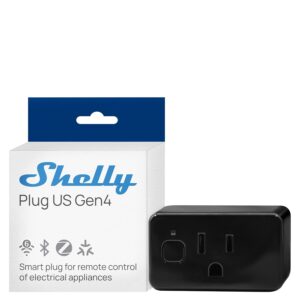
Connecting to Wi-Fi Using the Built-In Web Interface OR Setup via the Shelly Plug App
Shelly plugs include their own built-in Wi-Fi access point for first-time setup. Once connected to your network, they will automatically appear in the controller dashboard.
Step 1 — Power On
Plug the Shelly device into power. On first boot (or after a factory reset),
it will broadcast its own temporary Wi-Fi network.
The network name will look similar to:
ShellyPlug-XXXXXX
Step 2 — Connect to the Shelly Network
- Open Wi-Fi settings on your laptop or phone.
- Connect to the Shelly network.
- Open a browser and go to:
http://192.168.33.1
This opens the built-in configuration page hosted directly on the plug.
Step 3 — Join Your Main Wi-Fi
Inside the Shelly web interface:
- Go to Internet & Security → Wi-Fi Mode (Client).
- Enter your primary Wi-Fi name (SSID).
- Enter the Wi-Fi password.
- Click Save.
The plug will reboot and connect to your network.
Once connected, it will automatically be discovered and added to the dashboard.
Optional — Disable Cloud Access
If you prefer fully local control:
- Go to Internet & Security → Cloud.
- Disable Cloud.
- Save and reboot.
The device will continue to operate locally and remain visible to the controller.
Factory Reset (If Needed)
If the plug does not broadcast its setup Wi-Fi:
- Hold the physical button on the plug for approximately 10 seconds.
- Release when the LED indicator changes state.
The device will reset and rebroadcast its configuration network.