
Roku Device Compatibility
What to know about streaming performance, playback control, and power on Roku devices
What to know about streaming performance, playback control, and power on Roku devices
DisplayHUB works with Roku streaming players and Roku TVs to provide reliable video playback and simple deployment. Roku devices are widely available, inexpensive, and extremely stable — making them a popular choice for many installations.
However, Roku devices operate differently from Android TV, webOS, and Samsung Tizen platforms. Roku does not support ultra-low-latency streaming modes. Instead, Roku always uses buffered playback for stability.
This guide explains what that means, how Roku playback behaves, how to fine-tune synchronization using DisplayHUB’s nudge controls, and how power and remote control work.
There are two ways to get DisplayHUB onto a Roku — both are simple.
Easiest — Roku Channel Store: On your Roku, search for DisplayHUB, or use the Channel Store link. This works on any Roku and updates automatically.
Sideload directly (no Roku account needed):
Unlike some other platforms, Roku devices cannot play ultra-low-latency video streams. This is a limitation of the Roku video playback system and cannot be changed.
Roku uses buffered streaming (HLS) for all video playback. This means the device downloads several seconds of video before displaying it. The buffer helps ensure smooth playback, but it introduces delay.
Typical Roku playback delay is 6 to 12 seconds.
This behavior is normal and expected. Roku prioritizes stability and compatibility over real-time playback.
Roku Playback Mode
Buffered streaming only
Reliable and stable
Higher latency than real-time devices
Most Roku video playback is designed for streaming services like Netflix, Hulu, and YouTube. These platforms use large buffers to ensure smooth playback even when network conditions fluctuate.
Because of this design, Roku does not provide a true real-time playback mode. The player expects buffered video segments and cannot maintain stable playback with extremely small buffers.
This makes Roku very reliable, but it also means it cannot match the sub-second delay possible on other platforms.
Large Buffer
Smooth playback
Stable streaming
Added delay
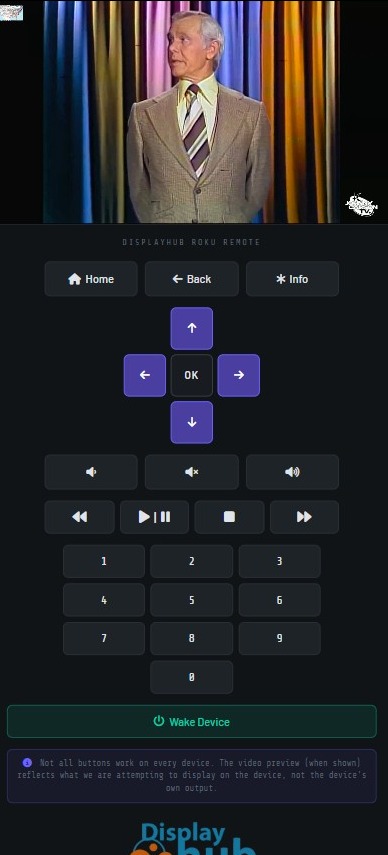
DisplayHUB controls Roku devices directly over the network using Roku’s built-in control service — no IR blaster or extra hardware required. Control is enabled by default; if no commands work at all, check that Settings → System → Advanced system settings → Control by mobile apps → Network access is set to Default (not Disabled).
Power buttons apply to Roku TVs only. Roku streaming players and Streambars have no network power-off — an ECP power command just returns them to the home screen — so they show volume and mute only.
Power Off: Works any time the Roku TV is on.
Power On (Wake): DisplayHUB sends Wake-on-LAN plus an ECP wake. Enable Fast TV Start so the TV stays reachable after it has been off for a while:
Without Fast TV Start, Power Off still works but Power On may not reach the TV once it has been off for a while — a wired Ethernet connection makes remote wake the most reliable.
Volume & Mute: Work on Roku TVs and Streambars (devices with their own speakers). Streaming sticks pass audio through to the TV or receiver, so volume is controlled there instead.
Power Off
Works any time the TV is on
Power On (Wake)
Wake-on-LAN + ECP wake
(Roku TVs only — enable Fast TV Start)
Because Roku uses buffered playback, different devices may not start at exactly the same moment. Even small differences in network timing or buffering can cause one screen to be slightly ahead or behind another.
DisplayHUB provides Nudge buttons to help fine-tune playback timing between screens.
What the nudge buttons do:
Think of nudge controls like gently tapping a screen forward or backward until it matches the others.
This is especially useful when:
Nudge adjustments are small and precise. You can press them repeatedly until the screen lines up exactly where you want it.
Nudge controls do not remove latency. They only adjust timing between devices.
Even though Roku uses buffered playback, network stability still matters. Poor WiFi can increase buffering time and cause larger timing differences between devices.
Best practice: Use wired Ethernet when possible.
Many Roku Ultra models and Roku TVs include Ethernet ports. Wired connections reduce variability, make synchronization more consistent, and make remote Power On (Wake-on-LAN) more dependable.
Home WiFi networks typically work well, but commercial environments benefit greatly from wired networking.
Roku devices provide stable and reliable playback, but they operate differently from other platforms.
Roku is an excellent choice when reliability matters more than real-time playback. For environments that require sub-second delay, other platforms may be a better fit.
Need help choosing the right device for your setup? Contact us — we’re happy to help.