Fixing Network Congestion Issues
How to keep DisplayHUB running smooth and stable on busy networks
How to keep DisplayHUB running smooth and stable on busy networks
DisplayHUB sends high-quality video streams across your local network. If the network is overloaded—or if Wi-Fi is weak—your displays may show:
These issues are almost always related to network congestion, not DisplayHUB itself. Below are the four most effective ways to eliminate congestion and maintain smooth playback.
Nothing beats a hard-wired connection. Ethernet gives your DisplayHUB devices a rock-solid 1 Gbps link.
If you can plug it in, do it. This solves 90% of congestion problems overnight.
Encoder ──────┐
              ├──► Gigabit Switch ───► Displays
Decoder ─────┘

Ethernet = Lower Latency + Higher Stability
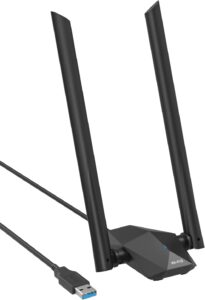
NOTE: These adapters are currently being tested, support is limited.
On Raspberry Pi or other devices with older Wi-Fi chipsets, upgrading to a Wi-Fi 6 (802.11ax) USB adapter dramatically improves:
Wi-Fi 6 handles crowded networks much better—especially in large venues with many phones connected.
We strongly recommend Wi-Fi 6 if running wireless decoders or if your Pi is far from the access point.
If your Wi-Fi can’t keep up, reducing the video resolution lowers bandwidth dramatically while still looking crisp on TVs:
Your encoders and decoders will instantly become more stable. Resolution changes are often unnoticeable at viewing distance.
If you run many displays on a single encoder—especially mixed wireless + hardwired—the encoder may be pushing more traffic than one device can handle.
Splitting your setup across multiple encoders helps reduce:
Ideal layout:
Encoders:
   [1] Game Room TVs
   [2] Bar Screens
   [3] Patio Displays

Load Balancing = Smooth Playback Everywhere