DisplayHUB Device Setup

Ship ready-to-install systems, preconfigured Pis, or full DIY with our install commands.

Contact Us for Free Help

Use Our Hardware or Yours

You can run DisplayHUB in three ways:

  • Complete systems: We can ship fully assembled, tested systems that are ready to install.
  • Preconfigured Pis: We can ship Raspberry Pis already set up as controllers and encoders.
  • DIY: You can use your own Pis and follow the commands on this page.

We also offer consulting and installation services for more complex venues or multi-site rollouts.

Under the hood, DisplayHUB uses:

  • Controller Pi: One Raspberry Pi that runs the DisplayHUB dashboard.
  • Encoder Pis: One Raspberry Pi per input that can encode HDMI, video files, or video URLs.
  • Players: Your existing Smart TVs, Smart Devices, or inexpensive Android dongles.

Important:
There are no passwords inside the DisplayHUB control layer. All Pis and players must live on a private staff-only LAN, never on guest WiFi or public networks.

Build in Place; No Need to Rewire, Rebuild, or Move Anything

Leave your current setup in place. Unlike most video matrix systems, you do not need to rewire or move anything.
You can place the controller anywhere, and each encoder can be placed alongside your current inputs, DirecTV boxes, or cable boxes.

Free consultation services are available to large venues (20+ displays), or hire your local computer people for a few hours.
Our systems are simple and standard.

Roles at a glance

  • 1 controller Pi per location
  • 1 encoder Pi per input
  • All devices on the same private LAN

Players Supported


Roku


Android


Fire TV


WebOS


Samsung Tizen

Step 1: Get Your Raspberry Pi Hardware

Controller Pi

  • Recommended: Raspberry Pi 5
  • 32 GB or larger microSD card
  • Flash our custom image, boot, and configure via the built-in web interface
  • Good-quality power supply

The controller handles the web UI, discovery, routing, and upgrades.
It does not need capture hardware.
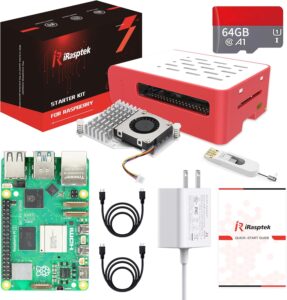

This is a complete kit that comes with everything we recommend.

Installation Options

  • Self-install is very easy.
  • Hire the local computer shop for a few hours.
  • Use our guided installation services.
  • Hire us for on-site installation.

Encoder Pis

  • Raspberry Pi 5 per input
  • 32 GB or larger microSD card
  • Flash our custom image and configure via the built-in web interface
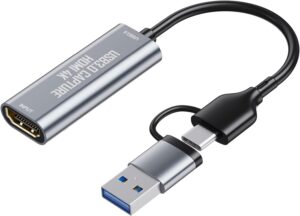
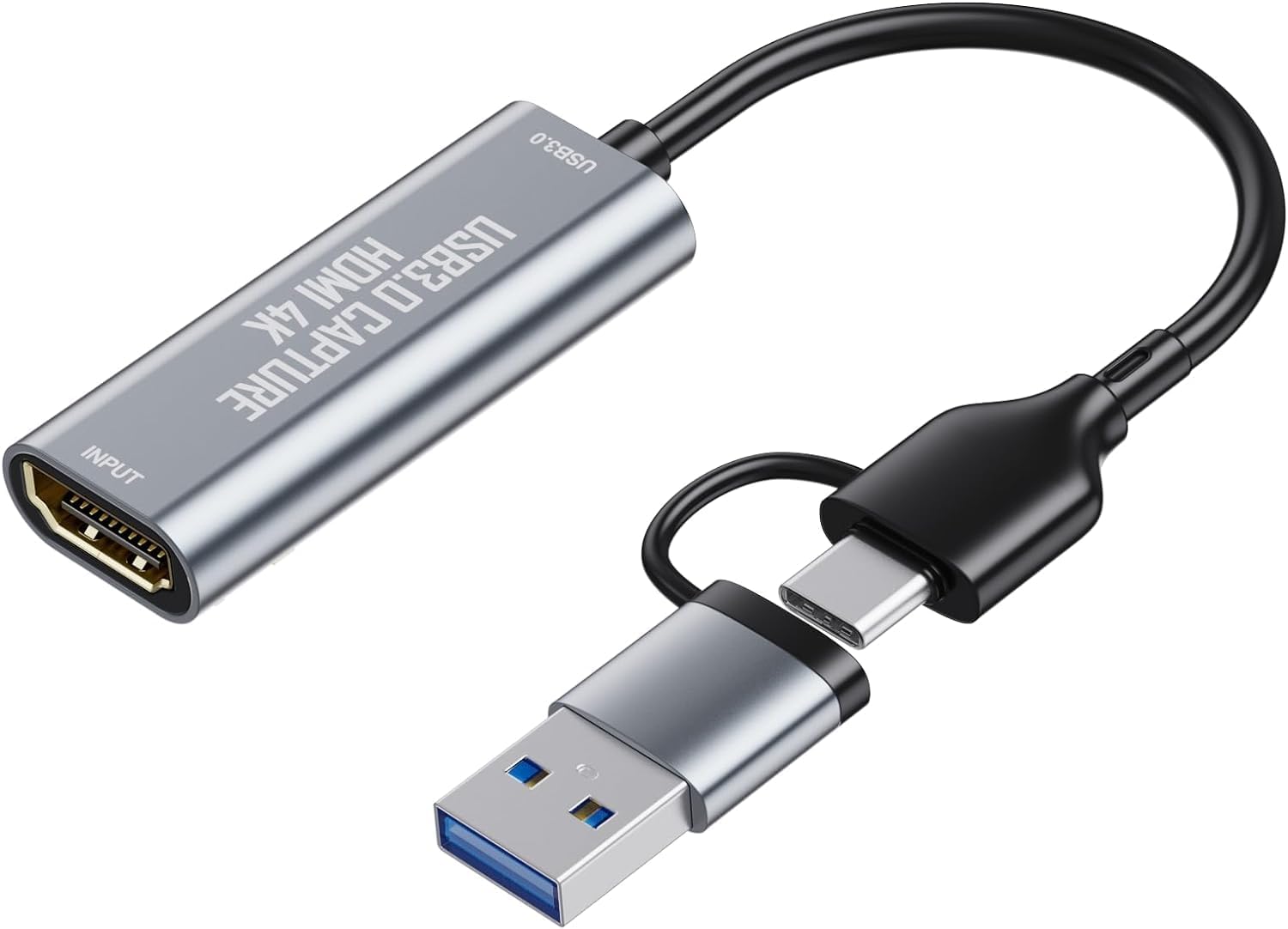
  • HDMI capture device for live inputs

IMPORTANT: Install the HDMI USB device below into the upper-left USB port of the Raspberry Pi 5.

Encoders can take in live HDMI, local video files, or remote video URLs.

HDMI to USB 3.0 Video Capture Dongle

USB Capture

~10


Amazon

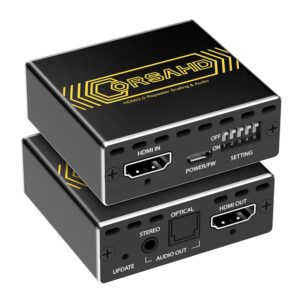
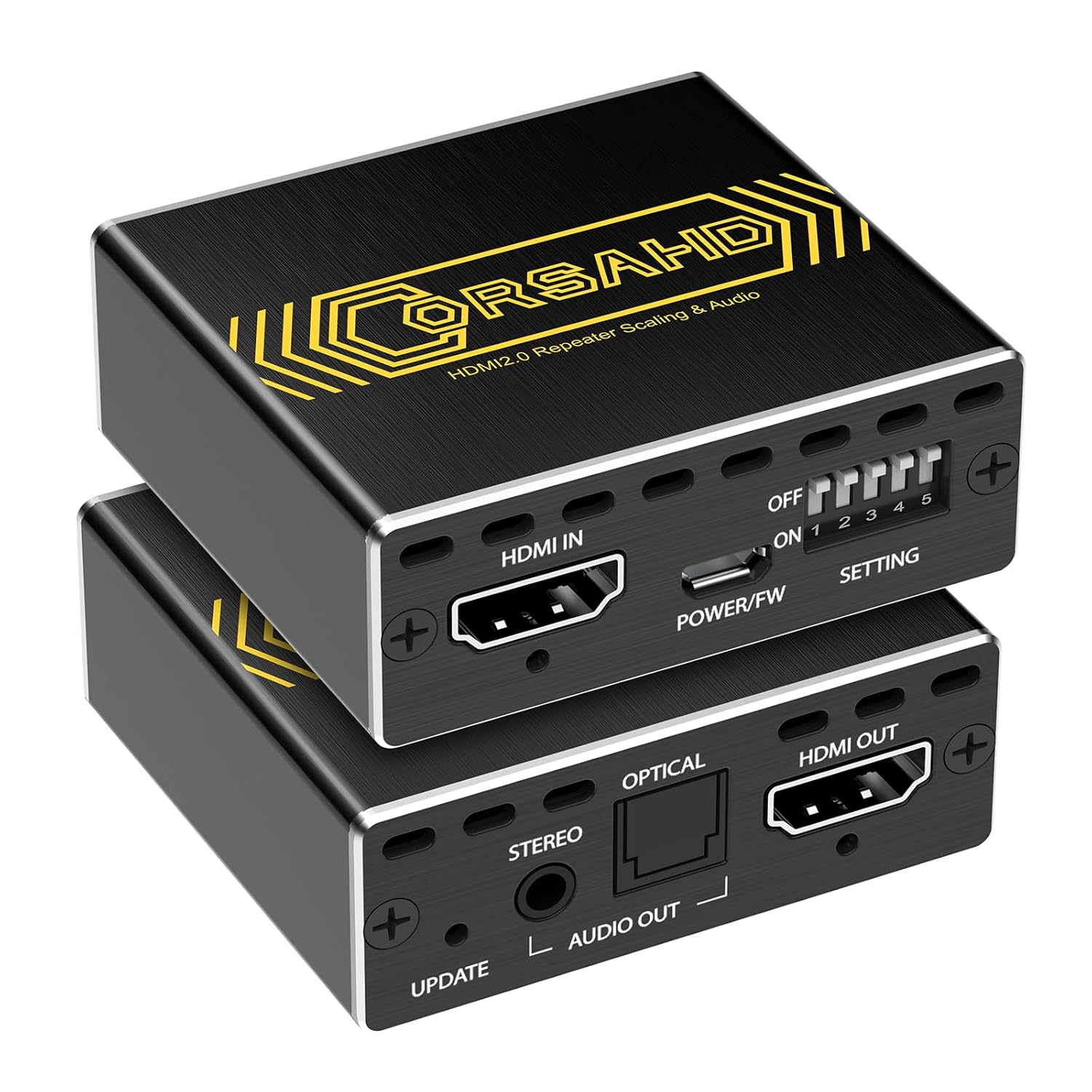
HDMI Audio Extractor – HDCP Bypass

HDCP Bypass

~20


Amazon

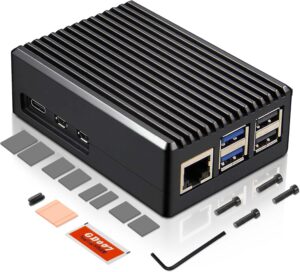
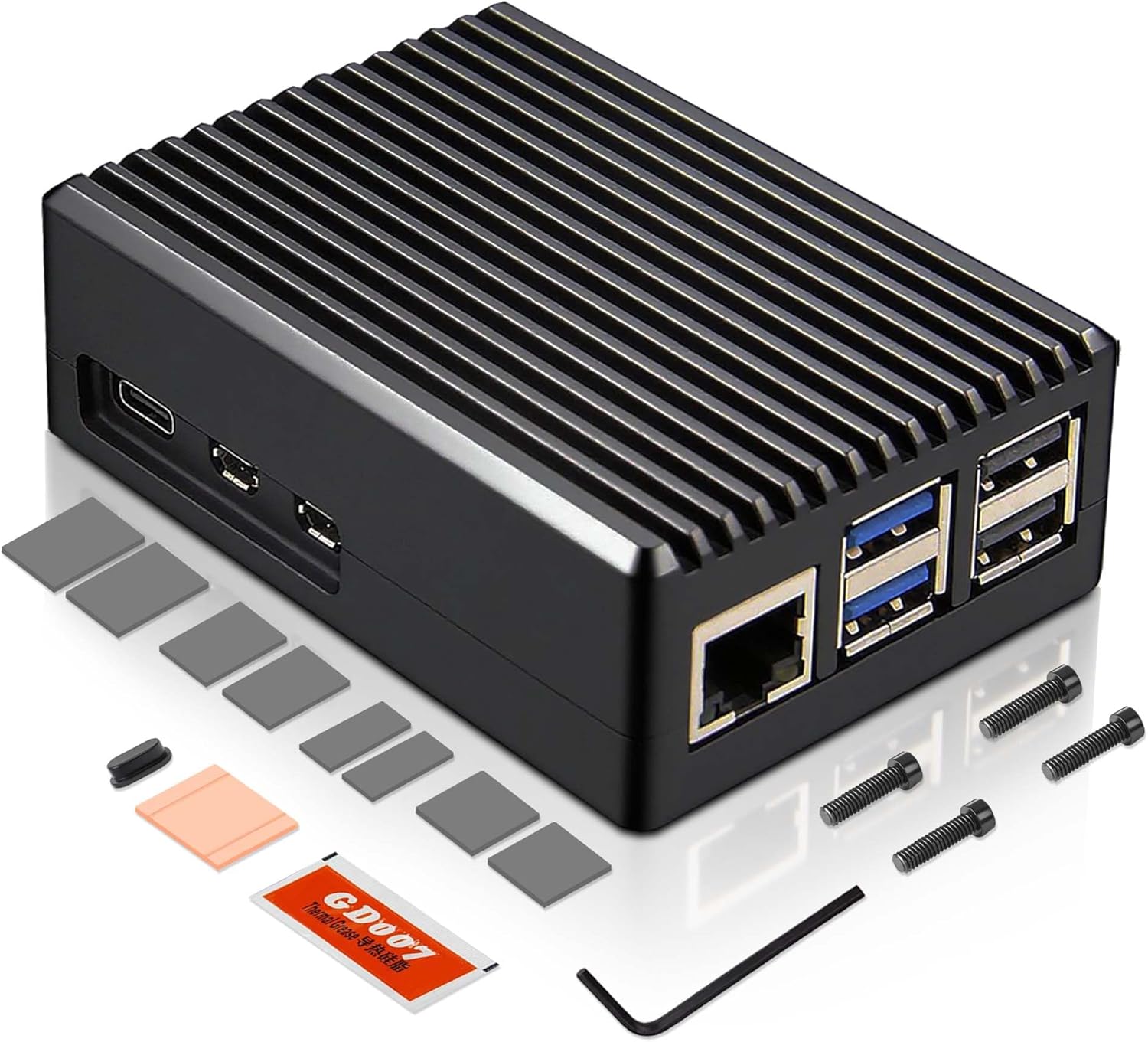
Passive Cooling Option

Passive Cooling

~10


Amazon

Step 2: Prepare the OS and Networking

Use an SD card imaging application like Balena Etcher to flash our custom firmware.

Once booted, you can manage everything through the built-in web dashboard.

Please contact us for a link to the downloadable images used to flash your Raspberry Pi SD cards.

Keep the Network Private

  • Connect all Pis and players to a private staff-only LAN or VLAN.
  • Do not place DisplayHUB devices on guest or public WiFi.
  • Prefer wired Ethernet for controllers and encoders.
  • Use DHCP reservations or static IPs for easier management.

DisplayHUB Networking Guide

Step 3: Connect Live HDMI, Files, or URLs

  • HDMI: Connect DirecTV, cable boxes, Roku devices, Android TV devices, media players, or PCs.
  • Video files: Place MP4 or similar files on the encoder Pi.
  • Video URLs: Configure the encoder with supported streaming URLs.
  • Use fixed resolutions and frame rates for best stability.
  • Confirm each encoder shows a live preview in the dashboard.

Once connected, all inputs appear as routable sources in DisplayHUB.